Walkthrough
Review Activity History
See workspace administration and Salesforce data actions in one place. Activity History helps you answer who performed an action, when it happened, whether it succeeded, and which workspace or Salesforce org it affected.
Before you begin
Activity History belongs to the currently selected workspace. From the canvas, open the account and workspace menu, select Settings, then select the Activity tab.
The page contains two separate histories:
- Workspace activity covers membership, permissions, workspace settings, sign-ins, and billing or plan changes.
- Salesforce data activity covers actions such as canvas saves, uploads, recalls, and refreshes in the active Salesforce org.
You need View activity history permission to open these histories. A workspace admin can review both histories across the workspace. A non-admin member sees only their own activity in both sections.
The process
- Open the workspace's Activity tab.
- Review the workspace and Salesforce sections separately.
- Filter by action or date when you need a narrower view.
- Refresh after completing an action in another tab.
- Export workspace activity when you need an offline copy.
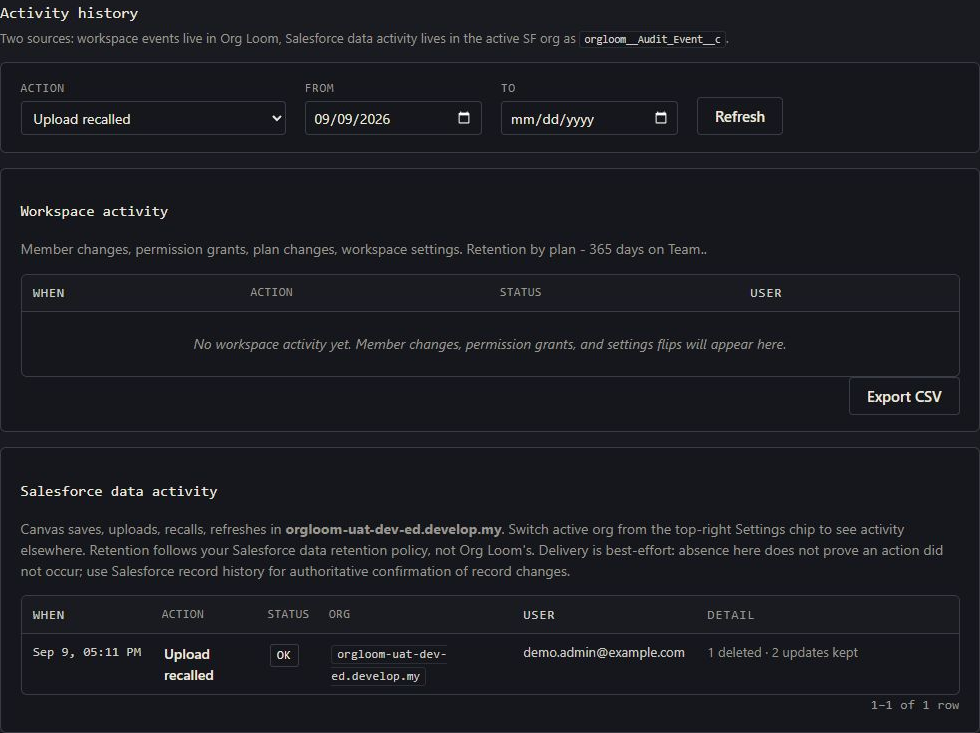
Step 1: Read an activity row
Each row shows:
- When: the date and time of the action.
- Action: a plain-language description of what happened.
- Status: whether the action completed, failed, or was denied by a workspace rule.
- User: the person responsible for the action, or the name of an AI-client token when the action came from a connected AI client.
The Salesforce section additionally shows Org and Detail, where a short count or result summary is available. Workspace activity does not have a Detail column. The Salesforce table shows events from the org associated with your active Salesforce connection. Switch orgs from the Salesforce connection control to inspect another org's data activity.
Step 2: Filter the history
Use Action, From, and To at the top of the page. The same filters apply to both sections. The Action list contains actions found in the currently loaded histories.
Select Refresh to fetch recent activity without clearing your filters. Use the page controls below a section when there are more rows than fit on one page.
Step 3: Investigate failures and denied actions
A failed row means Org Loom attempted the action but could not complete it. A denied row means a plan, permission, workspace setting, or Salesforce org filtering stopped the action before it completed.
Check the action and status, and any Detail shown in Salesforce data activity. Workspace activity does not preserve the original error message; ask the person who performed the action what message they saw. Depending on the action, the person may need to reconnect Salesforce, ask a workspace admin for permission, correct a Salesforce validation error, or try again.
Step 4: Export workspace activity
Select Export CSV below Workspace activity. The download uses the action and date filters currently selected on the page. A non-admin member's export contains only the activity they are allowed to see.
Salesforce data activity is not included in this download. If you need an export of those events, report on the Org Loom activity records in the active Salesforce org.
Retention and interpretation
- Workspace activity is retained for 365 days on Pro and Team workspaces, and 30 days while a workspace is Inactive.
- Salesforce data activity follows the retention rules in your Salesforce org.
- Changing plans affects the retention applied to new workspace events. Export anything you must keep beyond the displayed window.
Use Salesforce as the final record of Salesforce changes. Delivery to the Salesforce data activity feed is best effort. A missing event does not prove that an action did not happen. Use Salesforce record history or your organization's other native controls when authoritative confirmation is required.