Walkthrough
Transform canvas records with a script
Use Run script when a field change depends on logic that Bulk edit cannot express. A short, JavaScript-like script can clean text, calculate values, or apply different rules to different records on the canvas.
Before you begin
You will need:
- At least one draft or loaded record on the canvas.
- A plan that includes Run script.
- Run script permission from a workspace administrator.
If the permission is unavailable, Run script is hidden or directs you to the workspace permission settings.
Running a script does not write to Salesforce. It changes the records on your canvas. Salesforce changes only when you later choose Upload to Salesforce.
The process
- Open the script runner from the Tools menu.
- Write or adapt a script for the records on the canvas.
- Review the loaded-record warning and run it.
- Review the changed count and canvas values.
- Undo the run or upload the staged changes.
Step 1: Open the script runner
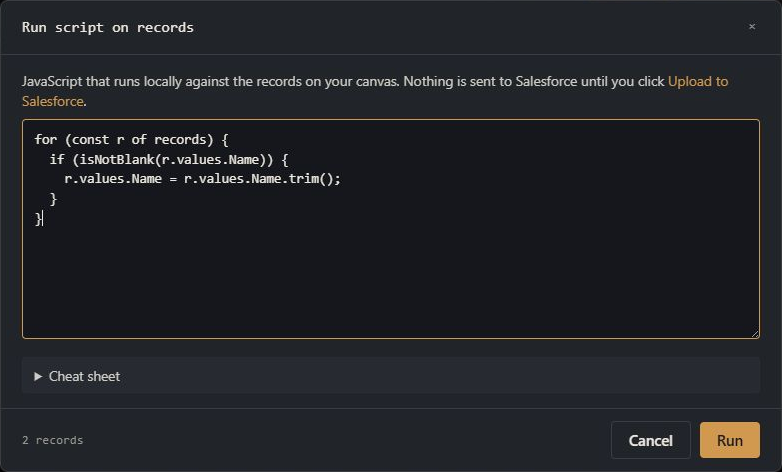
Open Tools ▾ and choose Run script. The modal shows an editor, a record count, a collapsed Cheat sheet, and a Run button.
The script receives the draft and loaded records on the canvas. The current canvas selection does not narrow its scope. Drafts and loaded records are included; schema cards and records still being added are not.
Step 2: Write the transformation
Your script runs once. The records collection is the list of canvas records available to the script; r in the example below represents one record at a time.
A typical script loops through the records and updates fields in
r.values:
for (const r of records) {
  if (isNotBlank(r.values.Name)) {
    r.values.Name = r.values.Name.trim();
  }
}
Use the Salesforce field API name, such as
Description or Custom_Status__c. You can
also check r.objectName to apply logic to one object
type, or r.loadedFromId to distinguish existing
Salesforce records from drafts.
The script can use variables across the loop. For example, a counter declared before the loop can number records in sequence.
Step 3: Use the supported language
Run script supports a focused subset of JavaScript. Expand Cheat sheet for the syntax and helpers available in the current editor.
-
Use
let,const,ifandelse,for...of, comparisons, text and number methods, and conditional expressions. -
Helpers include date functions, blank checks, number and text
conversion, rounding,
log(), andabort(). -
User-defined functions,
whileloops, classicforloops, regular-expression literals, template strings, andtry/catchare not supported.
If the editor reports unsupported syntax, use a listed helper or
restructure the operation with a for...of loop and
conditionals.
Step 4: Run the script
Select Run, or press Ctrl/Cmd + Enter. If the canvas contains loaded Salesforce records, Org Loom first shows how many of those records the script can change. Confirm to continue, or cancel without running the script.
A successful run reports how many records actually changed. A record counts only when its field values differ from the values before the run.
Step 5: Review, undo, or upload
Close the modal and inspect the changed cards. Existing records appear modified; drafts remain drafts. If the result is not what you intended, use Undo in the completion message before making later edits.
When the values are correct, choose Upload to Salesforce and review the normal upload preview. Untouched records are not updated simply because they were available to the script.
How failed scripts are handled
A run is all-or-nothing on the canvas. Org Loom takes a snapshot
before execution. If the script has a syntax error, calls
abort(), encounters a runtime error, or exceeds its
execution limit, every attempted record change is rolled back.
The result states that no changes were applied.
Record identity is read-only. Change fields through
r.values; do not assign a new record Id, Salesforce Id,
or replacement values object.
The script cannot access browser pages, browser storage, network requests, or Salesforce directly. Those names are unavailable in the script environment.