Walkthrough
Connect an AI client
Connect an MCP-compatible AI client to an Org Loom workspace. The AI can inspect canvases that are currently open and propose changes for review on the canvas. You can also enable automatic application of proposals for a particular canvas. It cannot upload records to Salesforce on its own.
Before you begin
MCP, or Model Context Protocol, is a standard that lets an AI client use tools supplied by another application. In this case, Org Loom supplies tools for reading open canvases and proposing canvas changes.
You will need:
- A Pro or Team workspace.
- The AI on canvas (MCP) member permission. A workspace admin can grant it from the member's feature permissions.
- An AI client that supports MCP over a remote HTTP endpoint and can send a static Authorization bearer token, either directly or through a local bridge.
- The canvas you want the AI to use open in a browser tab.
- If you want the AI to create drafts for a custom object, add at least one example record of that object to the canvas first. This makes the object and its available fields part of the canvas context the AI can use.
The token represents only your Org Loom user. It cannot act as another workspace member or use their Org Loom access. It is also tied to one workspace. Switching your active workspace in the browser does not retarget an existing AI connection. Generate a separate token in each workspace that the AI should access.
What the AI can access
- It can list and read canvases that are currently open in browser tabs for the token's workspace.
- It can read the canvas record values and Salesforce schema available through those open tabs.
- It can propose new drafts, field changes, relationship changes, record loads, and removals for review on the canvas.
Closing a canvas tab removes that canvas from the AI's available list. Revoking the member permission blocks future tool calls immediately, even when the member still has an unexpired token.
AI client access stays scoped to the canvas. It does not search your Salesforce org for other custom objects. To work with a custom object that is not yet represented, add an example record to the canvas, then ask the AI to read the canvas again.
An AI proposal does not change Salesforce. By default, a person reviews and applies it to the canvas. A user can deliberately enable Auto-apply AI proposals to this canvas, which lets future proposals land on that canvas without opening the review. Either way, a separate upload confirmation is required before Salesforce records change.
The process
- Grant the member permission.
- Generate a token for the active workspace.
- Configure the AI client with Org Loom's endpoint and token.
- Open a canvas and confirm the client can list it.
- Review any proposed changes in Org Loom.
- Revoke the token when it is no longer needed.
Step 1: Grant AI access to the member
Open the account menu in the upper-right corner, check the selected workspace, choose Settings, and select the Workspace tab. Under Members, a workspace admin opens the member's feature permissions and grants AI on canvas (MCP).
The permission is specific to that account in the current workspace. A token cannot be generated or used without it.
Step 2: Generate your token
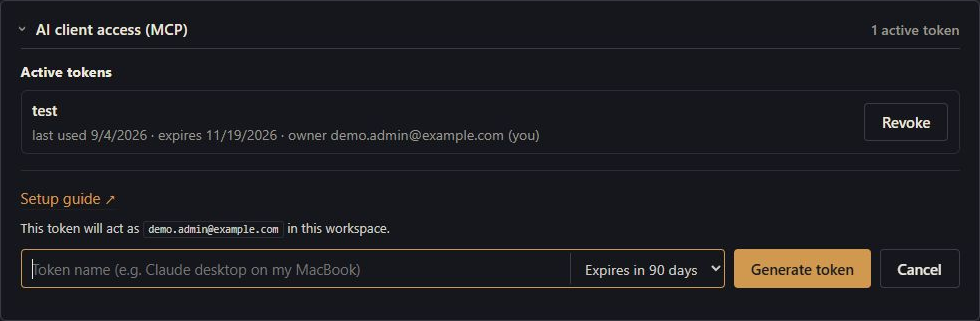
Expand AI client access (MCP) and select Generate new token. Enter a recognizable name such as AI client on work laptop. Choose an expiration of 30 days, 90 days, or one year, then select Generate token.
The token represents the signed-in Org Loom user only. Other workspace members generate their own tokens for their own access.
Copy the generated token immediately. Org Loom shows the complete token only once. If you leave the page without copying it, revoke the token entry and generate another one.
Treat the token like a password. Anyone who has it can use the permissions of the person who created it within that workspace until the token expires or is revoked.
Step 3: Configure the AI client
Every compatible client needs these two values:
-
Endpoint:
https://orgloom.com/mcp/v1 -
Authorization:
Bearer ol_mcp_REPLACE_WITH_YOUR_TOKEN
Use Streamable HTTP when your client asks for the MCP transport. The endpoint is also displayed in the AI client access section. Check your AI client's current MCP documentation for its current authentication options.
If your AI client supports remote MCP servers with bearer-token authentication, enter the Org Loom endpoint and token directly in the client's settings.
Some clients' remote-connector screens support only unauthenticated servers or OAuth. If your client does not provide a way to enter an Authorization header, use one of the local configuration examples below.
Example for a Windows client that launches local MCP commands
Some desktop clients accept a JSON configuration with an
mcpServers object but cannot connect to remote HTTP MCP
servers directly. For those clients, this example uses the
mcp-remote bridge and requires Node.js. Add the server
entry to the configuration file identified in your client's MCP
documentation:
{
  "mcpServers": {
    "orgloom": {
      "command": "cmd",
      "args": [
        "/c",
        "npx",
        "-y",
        "mcp-remote",
        "https://orgloom.com/mcp/v1",
        "--header",
        "Authorization:${ORGLOOM_AUTH_HEADER}"
      ],
      "env": {
        "ORGLOOM_AUTH_HEADER": "Bearer ol_mcp_REPLACE_WITH_YOUR_TOKEN"
      }
    }
  }
}
Keep the bearer value in env on Windows. Passing a value
containing spaces directly in args can cause the client to
start the bridge without the token.
Example for a macOS client that launches local MCP commands
Add this server entry to the configuration file identified in your client's MCP documentation:
{
  "mcpServers": {
    "orgloom": {
      "command": "npx",
      "args": [
        "-y",
        "mcp-remote",
        "https://orgloom.com/mcp/v1",
        "--header",
        "Authorization:Bearer ol_mcp_REPLACE_WITH_YOUR_TOKEN"
      ]
    }
  }
}
After changing a desktop client's configuration, quit the application fully and reopen it so the new MCP server is loaded.
Step 4: Confirm the connection
Open the target canvas in Org Loom and keep that browser tab open. Then ask the AI client to list my open canvases. The canvas should appear by name. Ask it to read the canvas or describe one of its Salesforce objects to confirm that the live connection is working.
The AI canvas visibility area in Workspace settings shows how many canvases and browser tabs are currently available. If the list is empty, confirm that the canvas tab is open in the token's workspace and that you still have the AI on canvas (MCP) permission.
Step 5: Review a proposal
When the AI proposes changes, open the proposal review on the canvas. Review the affected records and select only the changes you want to apply. Applying moves those changes onto the canvas. Rejecting or withdrawing the proposal leaves the canvas unchanged.
After applying, inspect the cards as you would after any other canvas edit. A separate Upload to Salesforce review and confirmation is still required.
If you turn on Auto-apply AI proposals to this canvas, future proposals skip this review and appear directly as staged canvas changes. The setting applies only to that canvas in that browser. Leave it off when you want to approve each proposal before it changes the canvas.
Step 6: Revoke access
Return to AI client access (MCP) and select Revoke beside the token. The next request using that token is rejected. Revoke a token when a device is lost, a client is no longer used, or the credential may have been exposed.
Members can revoke their own tokens. Workspace admins can also revoke tokens created by other workspace members. Each person can have up to 10 active tokens in one workspace.
Important behavior
- The AI cannot read a canvas when no browser in the workspace has that canvas open.
- Pending proposals expire after 24 hours and may disappear if the service restarts. Ask the AI to create the proposal again if needed.
- MCP actions appear in Activity History under the token's name, which helps distinguish one AI client from another.