Walkthrough
Compare two records
Use Diff records to compare two canvas cards field by field. You can inspect differences without changing either record, then copy selected values when one record should match the other.
Before you begin
Place both records on the canvas. They can be drafts, records loaded from Salesforce, or one of each. Comparing records of the same object type gives the most useful result because their fields have the same meaning.
The comparison itself is read-only. Copying a value stages an edit on the receiving canvas card, but it does not write to Salesforce. Salesforce changes only if you later upload that card.
Choose the direction carefully. Record A and Record B are labeled throughout the review. A left arrow copies B into A; a right arrow copies A into B.
The process
- Select exactly two records on the canvas.
- Open Tools ▾ → Diff records.
- Review the differences, gaps, and matching values.
- Copy individual values or apply several in one direction.
- Close the comparison, then continue editing or upload.
Step 1: Select and open the comparison
Select one record, then hold Shift while selecting the second. You can also drag a selection around both cards. Open Tools ▾ and choose Diff records.
The menu tells you when one more record is needed or when more than two are selected. With exactly two selected, the comparison opens and labels the cards as A and B.
Step 2: Read the comparison
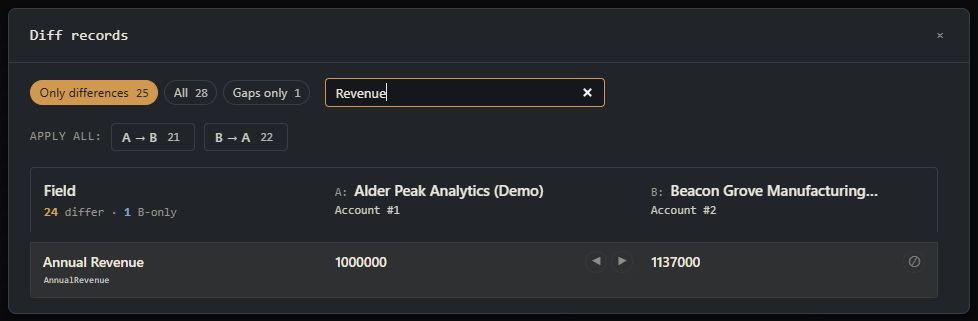
Each row represents one field. The field label and API name appear on the left, followed by the value on A, the copy controls, and the value on B. A gap means one card has a value and the other does not.
Use the controls above the rows to narrow the view:
- Only differences shows values that disagree or exist on one side only.
- All also shows fields that already agree.
- Gaps only shows fields with a value on only one record.
- Ignored appears after you mark a difference as intentional.
If the records have different object types, Org Loom still compares fields with the same API name and displays a warning. Treat those results as a convenience, not proof that the values are equivalent.
Step 3: Copy the values you want
- ◀ copies the value from B into A.
- ▶ copies the value from A into B.
After a copy, the row updates immediately. If the receiving card was loaded from Salesforce, it becomes modified because the new canvas value differs from its Salesforce baseline.
Use Apply all: A → B or Apply all: B → A when one record should be the source for several fields. The count on each action shows how many fields it can change. Apply all overwrites differing values and fills gaps on the receiving side, but it does not clear values that exist only on the receiving record.
Copy controls are disabled when Salesforce would not accept the change, such as a calculated or read-only field, or when the receiving card is marked for deletion. Apply all skips those fields.
Step 4: Search or ignore intentional differences
Use Search fields to filter by field label or API name. Search changes only what is visible in the modal.
Select the ignore control on a row when the difference is expected and should not distract from the rest of the review. The row moves to Ignored, where you can restore it later.
Ignored fields are remembered locally for that pair of records, even if A and B are selected in the opposite order. The preference is not included when the saved canvas is shared with someone else.
Step 5: Close, undo, or upload
Close the modal when the records look right. Copies remain staged on the canvas. To reverse the most recent copy, close the modal and use Ctrl+Z or Cmd+Z. A single-field copy undoes one field; an Apply all action undoes as one group.
Continue editing if needed. When you choose Upload to Salesforce, only the staged changes on loaded records are sent as updates. Drafts are still treated as new records.
What to expect
- Diff compares values available on the two canvas cards. A field hidden by permissions cannot be compared.
- Without current field metadata, values may be shown in their raw form and a read-only restriction may not be known until upload.
- Records marked for deletion can be reviewed, but they cannot receive copied values.
- Editing the receiving record after a copy prevents an older Undo from overwriting the newer edit.