Walkthrough
Edit existing Salesforce records
Load records from Salesforce, make focused changes on the canvas, and review exactly what will be updated before you upload. Records you do not change are left out of the upload.
Before you begin
An existing card represents a record already in the connected Salesforce org. Org Loom keeps the values it loaded from Salesforce as a baseline. When a canvas value differs from that baseline, the card becomes modified.
You will need:
- An active connection to the Salesforce org containing the record.
- Read access to load the record.
- Edit access to the record, object, and fields you intend to upload.
- In a Team workspace, the permission for the loading method you use and the Upload to Salesforce permission from a workspace admin.
Editing a card is local until upload. Saving the record editor changes the canvas only. Salesforce is updated after you choose Upload to Salesforce and confirm the upload.
The process
- Load an existing Salesforce record onto the canvas.
- Open the record editor and change the fields you need.
- Save the local edit and confirm the card is marked modified.
- Open Upload and review the fields that will be sent.
- Confirm the upload, or refresh the record to discard the local edit.
Step 1: Load the record
You can bring existing records onto the canvas in several ways:
- Browse records: search or filter an object, then add the records you need.
- SOQL import: load the records returned by a query.
- Import from CSV: map a CSV column to Salesforce ID (Id) to automatically load matching records and stage the CSV values as edits.
- Open a saved canvas: reopen a working set that contains existing-record references.
An unchanged loaded card shows as existing. It can remain on the canvas for context without causing an update.
Step 2: Edit the fields
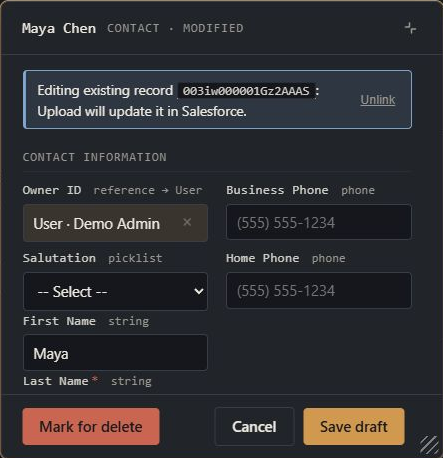
Double-click the card, or open its card menu and choose Edit. The record editor uses the fields and picklist choices available to your Salesforce user. Fields may be grouped into collapsible sections based on the Salesforce layout.
Change only the values you intend to stage. Org Loom checks basic field formats and shows available validation-rule guidance in the editor. Salesforce still runs its complete validation, automation, and permission checks during upload.
Step 3: Save the local edit
Choose Save draft at the bottom of the editor. When you are editing a card already on the canvas, the editor closes and a message reports how many fields changed locally. Closing the editor without saving discards what you typed in that editing session.
The card shows modified only while its canvas values differ from the Salesforce baseline. Returning every field to its original value returns the card to existing.
Step 4: Review and upload the change
Choose Upload to Salesforce. The upload preview shows the records that will be created, updated, or deleted and reports permission or validation problems before you confirm.
Updating an existing record changes only the fields you edited; it does not replace the whole record. Org Loom sends only fields whose canvas values differ from the loaded Salesforce baseline. Untouched fields are not included in the update; intentionally clearing a field on the canvas is a change and sends that clear to Salesforce.
- Modified existing records send only fields that differ from the loaded baseline.
- Unchanged existing records are skipped and receive no update.
- Draft records are created with the writable values they contain.
- Records marked for deletion are deleted from Salesforce. Removing a card from the canvas alone does not delete the Salesforce record.
- Record-level read-only access leaves the card available for reference but excludes its updates and deletes from the upload.
Immediately before an update, Org Loom reads the affected fields from Salesforce. If one changed after the canvas loaded, the upload stops before writing and asks you to review the loaded, current, and proposed values.
After the upload finishes, successfully created and updated cards refresh using the same Salesforce retrieval as Refresh from Salesforce, including readable fields and relationships populated by Salesforce. A canvas edit made while the upload was running is preserved as a new unsaved change.
If this refresh fails, the upload remains successful and a warning explains which step failed. Use Refresh from Salesforce to retrieve the latest values rather than uploading again just to refresh.
Salesforce controls the final record state. Org Loom refreshes affected records immediately after a successful upload, but it cannot predict or wait for every flow, trigger, asynchronous job, integration, or other downstream automation. Automation that runs later may change the records again; refresh them from Salesforce when you need to confirm their latest state.
If Salesforce rejects a record, review the returned message, correct the card, and run the upload again. A failed record remains available on the canvas for correction.
Discard changes before upload
To replace one card with the current Salesforce values, open its menu and choose Refresh from Salesforce. If the card has unsaved local edits, Org Loom asks you to confirm before discarding them.
To refresh several loaded records, select them and use Tools ▾ → Refresh from Salesforce. With nothing selected, the same action applies to all loaded records on the canvas.
Remove from canvas is not a Salesforce delete. It only removes the card from this canvas. Use Mark for delete in Salesforce when you deliberately want the next upload to delete the Salesforce record.
Undo a completed upload
Refreshing is useful before upload. After an upload has already changed Salesforce, open Upload history and review whether that upload can be recalled. Recall can restore selected fields that were changed by the upload while protecting later Salesforce edits.
Edit several records at once
Use Bulk edit when the same field change should be applied across several cards. Bulk edit also stages changes on the canvas first, so you can review them before uploading.