Walkthrough
Save and reopen a canvas
Save a canvas when you want to keep its objects, records, relationships, and layout for later. Saving preserves your working canvas. It does not create or update the Salesforce records shown on that canvas.
Before you begin
You will need:
- An active connection to the Salesforce org where the canvas will be saved.
- Permission in Org Loom to save canvases.
- Salesforce permission to create and read Files.
Saved canvases are stored as encrypted Salesforce Files in the connected org. Org Loom keeps the information needed to locate and decrypt the file, but does not store the canvas contents at rest on Org Loom servers.
Save and Upload are separate. Use the menu beside Save canvas to preserve the canvas. Use Upload to Salesforce when you want to create, update, or delete Salesforce records.
The process
- Save the current canvas with a name.
- Use Save changes as you continue working.
- Open Canvases and load it later.
- Choose how to handle an open canvas or a newer saved version.
Step 1: Save a new canvas
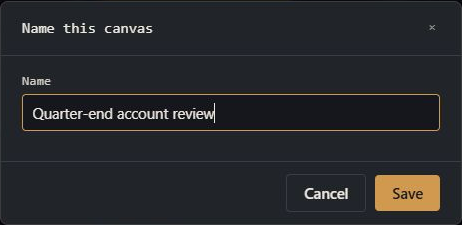
Open the menu beside Save canvas, then choose Save as new canvas. Enter a name that will make sense when you return to it, then select Save. A blank named canvas can also be saved if you want to name and share a canvas before adding records.
The saved canvas includes:
- The selected object schema and canvas layout.
- Cards and the relationships drawn between them.
- Draft field values, including blank drafts you intentionally added.
- References to loaded Salesforce records and your saved field changes.
- Requests for teammates to add records or fill fields, and records marked for deletion on the next upload.
Step 2: Save later changes
Once you have a canvas you own open, the Save menu offers Save changes. This updates the existing saved canvas instead of adding another canvas to the list.
If you opened someone else's canvas and cannot overwrite it, the menu offers Save a copy. The copy becomes your own editable canvas in your Salesforce org. An explicit Editor can save to the original; viewers and contributors cannot overwrite it.
Owners and editors can also choose Save as new canvas to preserve a separate version under a new name.
Step 3: Reopen a saved canvas
Select Canvases ▾ in the upper navigation. The list shows canvases available through the current workspace and Salesforce connection. Labels such as MINE, EDITOR, and CONTRIBUTOR indicate your role.
Choose Load. If the current canvas already has content, decide whether to replace it or add the saved canvas to what is already open. Cancel if you need to save the current work first.
Step 4: Review the reopened records
Loaded Salesforce records are read again when the canvas opens. This gives you the current values that your Salesforce user can see. Field changes intentionally saved with the canvas are then reapplied so that your work remains staged.
- Drafts return with the owner's saved values because they have no Salesforce record to refresh.
- Unavailable records do not block the canvas. A missing record may retain its previously loaded card and a resolution control. If the connected user lost access, Org Loom redacts the card's values instead.
- Shared recipients receive the saved canvas content, including values on draft cards. Review draft values before sharing the canvas with someone else.
When the canvas was saved elsewhere
If another tab or an authorized teammate saves the same canvas after you open it, Org Loom stops your next save instead of silently overwriting the newer work.
- Reload opens the newer saved version and discards your unsaved canvas changes.
- Save anyway deliberately overwrites the newer version with your current canvas.
- Cancel leaves your current canvas open so you can review or export it before deciding.
Use Save anyway only when you have confirmed that your version should replace the other person's changes.
Download a copy to your machine
The Save menu can also offer two downloads:
- Export canvas (JSON) keeps the schema, records, layout, relationships, and teammate requests for a later Org Loom import. It includes current field values for existing records and drafts, plus the information needed to preserve pending edits. Re-import restores the exported values rather than fetching newer record values.
- Export records (CSV) downloads current field values for existing records and drafts, grouped by object type. Empty fields are identified in a metadata column to preserve blanks on re-import. Spreadsheet-sensitive values are protected, with export metadata that lets Org Loom restore their original text when you re-import the file. It does not preserve the canvas layout or relationships.
These options appear only when your workspace permissions allow the relevant export. Encrypted fields and inaccessible records are excluded. Downloaded files contain record data; store and share them securely.