Walkthrough
Share and edit a canvas with teammates
Share a saved canvas with another Salesforce user in the same org. You can let them explore the canvas, complete specific requests, or co-author it with you while everyone continues to use their own Salesforce access.
Before you begin
You will need:
- A Pro or Team workspace.
- A canvas saved in the connected Salesforce org.
- An active Salesforce user in the same org with an email address and the required Org Loom managed-package permission set.
- In a Team workspace, the Share canvases permission from a workspace admin.
The recipient does not need an Org Loom account before you share. The notification email tells them how to create an account or sign in, then connect to the same Salesforce org as the user you selected.
Viewer and Contributor access are free in Org Loom. Editor access requires the recipient to have an active Pro trial, Pro subscription, or Team seat. Each person still needs their own appropriate Salesforce user and license.
Sharing a canvas does not grant access to Salesforce records. Each recipient sees only the objects, fields, and existing records available to their own Salesforce user. Org Loom does not change sharing for Accounts, Contacts, or other Salesforce records on the canvas.
The process
- Save the canvas.
- Choose a teammate and a canvas role.
- Share the canvas and, if needed, send the copied link.
- Create requests for any work you want a Contributor to complete.
- Work together and save the canvas.
- Change or remove access when needed.
Step 1: Save the canvas
A canvas must be saved before it can be shared. Open the menu beside Save canvas and save it to the active Salesforce org. If you select Share while working on an unsaved canvas, Org Loom asks you to save it first.
Confirm that you are connected to the org whose users should receive the canvas. A share is tied to both this saved canvas and the Salesforce user you select.
Step 2: Choose a teammate and role
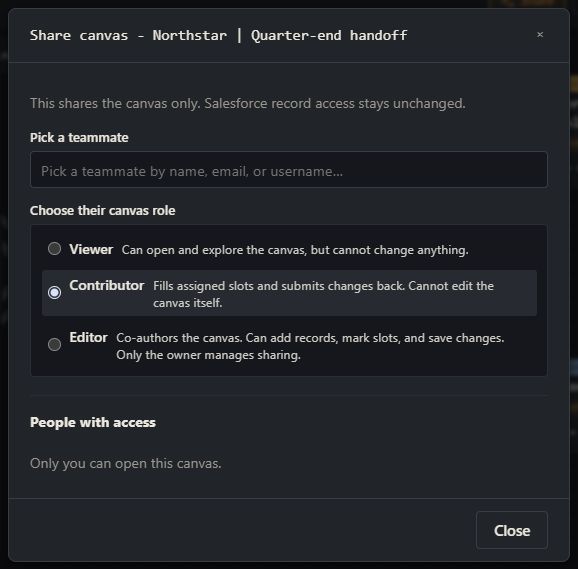
Select Share, then search for a teammate by name, email address, or Salesforce username. Choose the person from the results and select one of these roles:
- Viewer can open and explore the canvas but cannot change it.
- Contributor can complete record and field requests assigned to them or made available to any Contributor. The rest of the canvas remains read-only.
- Editor can add, edit, remove, and connect records, configure requests, and save canvas changes. Only the owner can manage sharing or upload the canvas to Salesforce.
After both choices are made, review the summary and select Share with teammate.
Step 3: The recipient opens the canvas
Org Loom emails the recipient when possible. If the email cannot be delivered, access is still granted and Org Loom lets you copy the canvas URL to send another way.
The recipient signs in to Org Loom and connects to Salesforce as the exact user named in the share. They can then follow the shared URL or open the canvas from their saved-canvas list.
The URL alone does not grant access. Forwarding it to another person does not share the canvas. Org Loom checks the signed-in person's Salesforce identity and current canvas role before opening it.
The canvas is filtered through the recipient's Salesforce permissions. Information they cannot access is hidden rather than revealing object names, field names, record values, or relationships. A requested field that they can use, but that is not on their Salesforce page layout, appears under Additional fields.
Step 4: Ask a Contributor to complete work
Contributor access is useful when you want a teammate to complete a focused part of the canvas without editing everything else. Org Loom supports two types of request:
- Add a record asks a teammate to create or choose a record of the type you specify.
- Fill in fields asks a teammate to complete specific fields on a record or draft already on the canvas.
To add a record request, open the canvas menu where you want the new record and choose Request record here. To request fields, open the card's menu and choose Request fields on this record or Request fields on this draft.
Add optional instructions, then assign the request to a Specific teammate or make it available to Any contributor. A specific teammate must have Contributor or Editor access. If they do not, Org Loom asks before granting Contributor access when you save the request.
You can reopen a request from the card menu to change its fields, instructions, or assignee. Owners and Editors can configure requests. Only the owner can change a person's overall canvas role.
Step 5: Complete and review requests
A Contributor sees a Your tasks panel divided into Add records and Fill in fields. Selecting a task locates the relevant card, and field tasks open the record at the next field that needs attention.
The Contributor enters the requested information and chooses Save changes in the open record. Only the allowed request values are accepted. Their response is shared with the canvas owner and appears in other open sessions, but it is not uploaded to a Salesforce business record.
The owner sees the same work in a Requests panel, including its assignment and completion state. Completed tasks remain available for review.
If Salesforce permissions prevent the recipient from seeing an object or using a requested field, the task is shown as unavailable or blocked. The canvas share does not override those permissions.
Step 6: Work together
When authorized users have the canvas open at the same time, Org Loom shows who is present. Cursors, focused records, saved field changes, new or removed records, card positions, and relationship changes are shared between open sessions when the recipient is allowed to see the affected content.
When someone begins editing a field, that field is reserved for them. Other users can see who is editing it. If necessary, another eligible user can choose Take over; Org Loom confirms the change before transferring control. Complete field values are shared after Save changes, not character by character.
Live updates keep open sessions coordinated, but owners and Editors should still use the menu beside Save canvas and choose Save changes to preserve the working copy so it can be reopened later. Saving the canvas preserves its cards, relationships, layout, requests, and staged values. It does not upload those values to Salesforce.
If someone saved a newer canvas version before you, Org Loom stops the save and shows Canvas was edited elsewhere. Choose Reload to use the latest version, or Save anyway only when your current version should replace it.
Step 7: Upload when the canvas is ready
Only the canvas owner can choose Upload to Salesforce for a shared canvas. Viewer, Contributor, and Editor work remains staged until the owner reviews the canvas and confirms the upload.
The upload uses the owner's active Salesforce connection and is checked against that user's Salesforce permissions, validation rules, and other org requirements.
Change or remove access
Open Share again and find the recipient under People with access. Choose Viewer, Contributor, Editor, or No access, then save the change.
Role changes apply to open sessions. A recipient may be asked to reload when their access increases. If access decreases, editing stops and a reload is required. Selecting No access removes the canvas from the recipient and prevents the shared URL from reopening it.
Changing or removing canvas access does not change the person's Salesforce record permissions.