Walkthrough
Explore objects, fields, and relationships
The Schema explorer shows how objects in the connected Salesforce org relate to one another. Here, schema means the objects, their fields, and the relationships between them, rather than the records stored in those objects. Use it to find an object, inspect its fields and picklist values, and add a related draft to the canvas.
Before you begin
Connect the Salesforce org whose schema you want to inspect. The objects and fields shown are based on that connection and the connected user's Salesforce access.
Exploring schema is read-only in Salesforce. Opening the panel, navigating relationships, and inspecting fields do not change Salesforce records or configuration. Adding a record from the explorer creates a draft on the canvas only.
The process
- Open and size the Schema explorer.
- Choose the object you want to understand.
- Navigate its parent and child relationships.
- Inspect fields and picklist values.
- Optionally add a draft to the records canvas.
Step 1: Open the Schema explorer
Select the Schema divider at the side of the canvas. Drag the divider to give the schema or records side more space. Select the divider again to collapse the explorer.
Collapsing or resizing the panel changes only the layout. It does not add, remove, select, or reposition records.
Step 2: Choose an object
Select + Find object and search by Salesforce label or API name. Choose the object to place it at the center of the explorer.
When you first open Schema with a record focused on the canvas, that record's object can provide the starting point. After you navigate within Schema, editing or rearranging canvas records does not unexpectedly change the object you are inspecting.
Custom objects are included when they are available to the Salesforce user. Being visible in the explorer does not necessarily mean you can create records for that object; Salesforce permissions still determine which actions are available.
Step 3: Navigate the relationship map
Related objects appear around the object in the center:
-
Parents are objects referenced by a field on the
center object, such as the Account referenced by
Contact.AccountId. - Children are objects with a relationship back to the center object, such as Contacts related to an Account.
Use Parents, Children, or Both to control the relationships shown. Use the Filter objects search box to narrow the visible objects. Select a related object to move it to the center and continue exploring from there.
The System fields filter controls whether relationships such as Created By appear on the map. Turn the filter on to hide these system-field relationships.
Step 4: Inspect fields
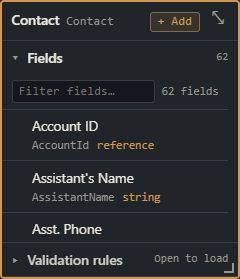
Double-click an object card, then expand Fields. This section lists each field's label, API name, and Salesforce type. Search within the panel by any of those values.
Picklist rows can be expanded to show their labels, API values, and default value. If a field or object you expect is absent, check the connected user's Salesforce permissions and refresh the page after any schema or permission change.
Step 5: Add a record from Schema
Select the + control on an object, or + Add in its expanded fields panel. Org Loom adds a blank draft of that object to the records canvas.
When you add an object through a relationship connected to the focused canvas record, Org Loom can also draw the corresponding canvas relationship. Review the new draft and relationship before entering fields or uploading.
What Schema does not show
- Objects and fields unavailable to the connected Salesforce user.
- Record values or counts for every relationship.
Schema information is cached for the browser session. Refresh the page after an administrator creates a field, changes a picklist, or updates your permissions.