Walkthrough
Find records on a canvas
Search the records already on your canvas by name, field value, or Salesforce record ID. Select a result to move directly to the matching card without changing any data.
Before you begin
Add at least one record to the canvas. Search does not query your Salesforce org, so it works only with records currently on the canvas and does not require a live Salesforce connection.
Search is read-only. Opening the search, typing a query, and selecting a result do not edit records, relationships, or the current selection.
The process
- Open Tools ▾ → Search canvas, or use the keyboard shortcut.
- Enter part of a name, value, or Salesforce record ID.
- Review the matching records and fields.
- Select a result to move to that card.
Step 1: Open Search canvas
Open Tools ▾ and select Search canvas. You can also press Cmd+F on Mac or Ctrl+F on Windows and Linux while you are not typing in another field.
The menu item is unavailable when the canvas has no searchable records. Add or import records first, then open the menu again.
Step 2: Enter a search
Type any part of the value you want to find. Matching is not case sensitive, so acme, Acme, and ACME return the same results.
Search checks:
- Field values shown on draft and existing records.
- The display name used on each card.
- The Salesforce record ID for an existing record.
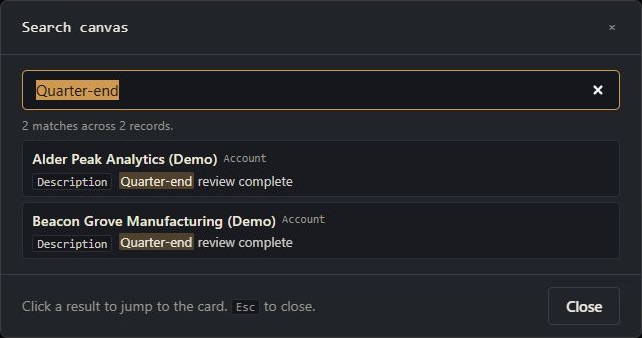
Step 3: Move to a matching record
Select a result, or press Enter to use the first result. The search closes, the matching card moves into view, and the card is highlighted briefly.
Open Search canvas again to use the same query or replace it with a new one. Your previous query is selected when the search reopens.
Search limits
- Search shows at most 100 results. Use a more specific value when the result message says only the first 100 are shown.
- System fields used to track record changes, and internal card information such as selection state, are excluded from the search.
- Object placeholders and records that are still being added are not included.
- To find records elsewhere in Salesforce, use Browse records.