Walkthrough
Connect a Salesforce org
Connect your Salesforce account so you can load records into a canvas and save changes back to Salesforce. If your organization has not used Org Loom before, a Salesforce administrator will need to complete the installation and access setup described below.
Before you begin
Sign in to Org Loom first, then connect the Salesforce account you want to work with. This allows Org Loom to access Salesforce on your behalf, using that Salesforce user's existing permissions.
You will need:
- The login details for the Salesforce user you want to connect.
- Help from a Salesforce administrator if the org needs installation or your Salesforce user needs additional permissions. Org Loom provides setup instructions you can copy or email to your administrator.
- Your org's sign-in address if your organization uses its own Salesforce domain. Ask your administrator for the Current My Domain URL, or find it under Salesforce Setup → Company Settings → My Domain.
What to expect
Choose a Salesforce sign-in address, sign in, and approve access. If the org and your permissions are already configured, Org Loom returns to the canvas and you can confirm your connection. If setup is needed, follow the administrator setup steps before continuing.
Step 1: Open the Salesforce connection window
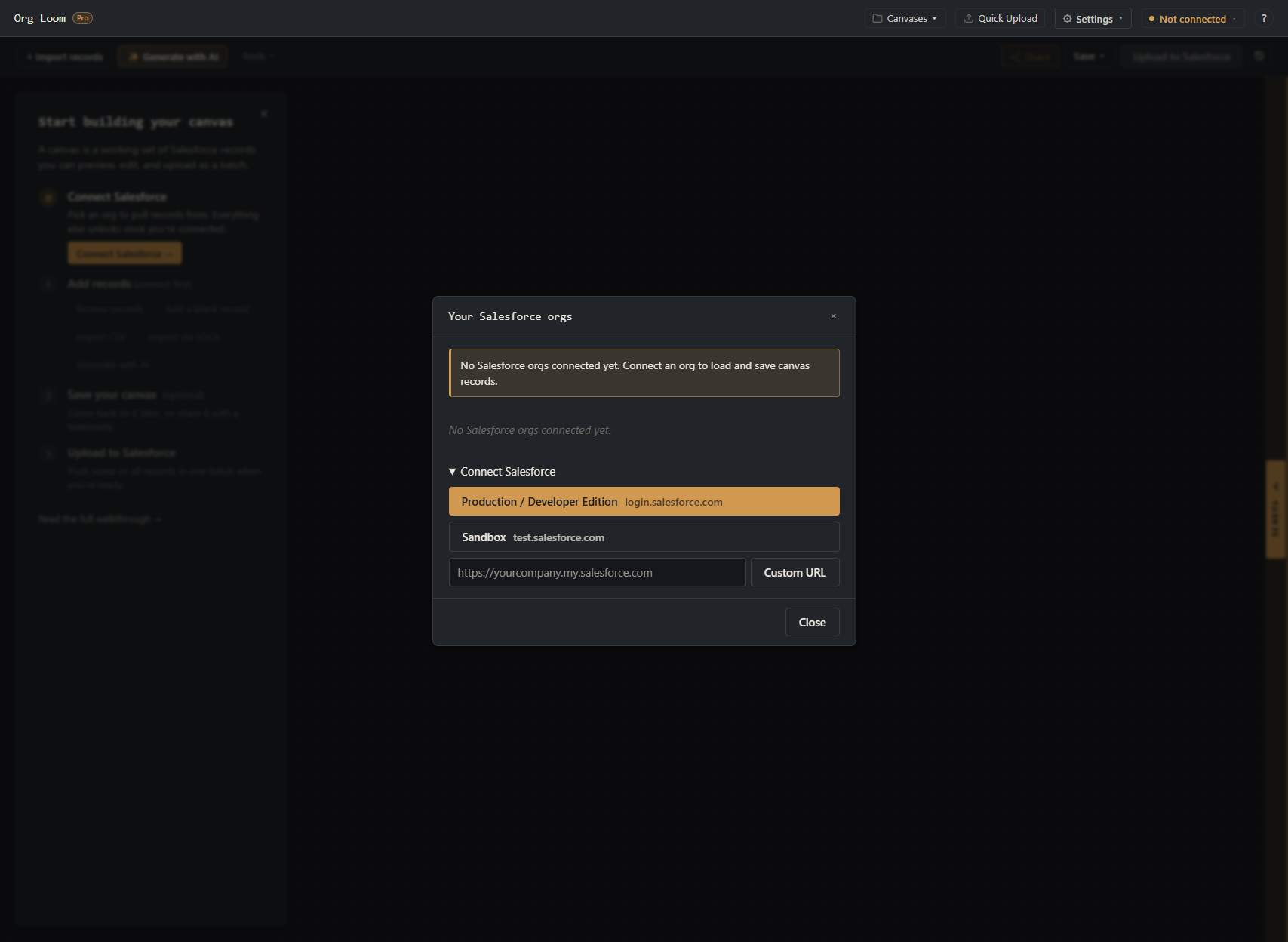
Click the Salesforce connection control in the upper-right corner of the canvas. It displays Not connected when you have no active connection, or the connected Salesforce username otherwise. On a new canvas, you can also select Connect Salesforce in the getting-started guide. Either action opens the Salesforce connections window.

Step 2: Choose the correct sign-in address
Open Add connection and choose an Environment, then click Connect:
- Production is for your organization's live Salesforce environment or a Developer Edition org.
- Sandbox is for a Salesforce sandbox used for testing.
-
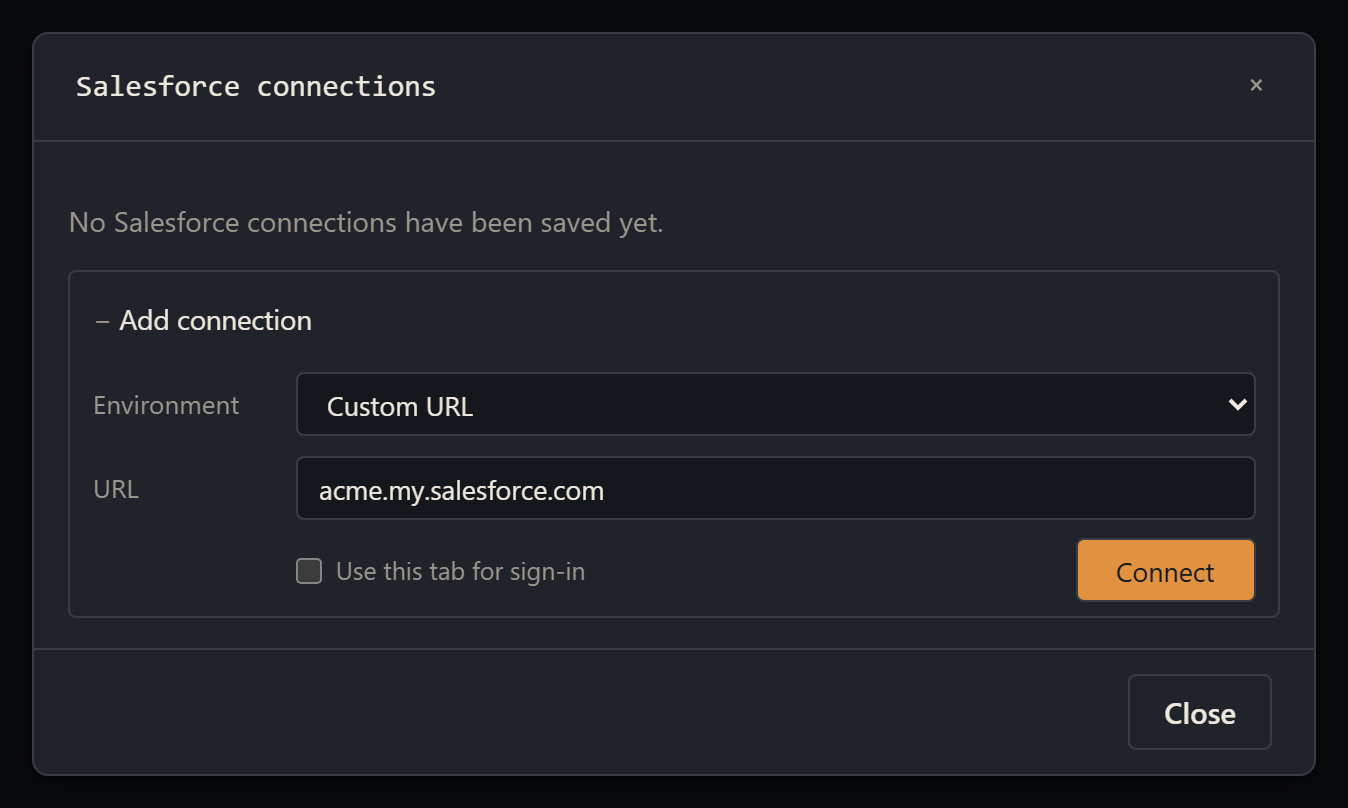
Choose Custom URL for an organization-specific sign-in address, then enter your
Current My Domain URL in the field showing
acme.my.salesforce.comand click Connect. This option also supports scratch orgs used for Salesforce development.
Enter only the Salesforce domain, such as acme.my.salesforce.com,
without a record or Setup page path. Org Loom adds https://
if you leave it out.
The form opens automatically for your first connection. For additional connections, expand Add connection.
Choosing Custom URL reveals the URL field:
Step 3: Sign in and approve access
Salesforce opens its sign-in page in a separate window by default. Select Use this tab for sign-in below the connection fields if you prefer the current tab. Check the sign-in address and enter the credentials for the Salesforce user you want to connect. Org Loom never receives the password entered on this page.
Salesforce may recognize an account already signed in to this browser. Check the username before approving access. If it is the wrong account, sign out of Salesforce and restart the connection using the intended account.
When Salesforce displays Allow Access?, review the request and select Allow.
Complete Salesforce setup if prompted
Steps 4–6 require a Salesforce administrator. Installation and policy configuration are first-time setup tasks for each org; permission-set assignment is required for each connecting user. Complete only the setup that is missing. If the org and your permissions are already configured, continue to Step 7: Confirm the connection.
Step 4: Install Org Loom when prompted
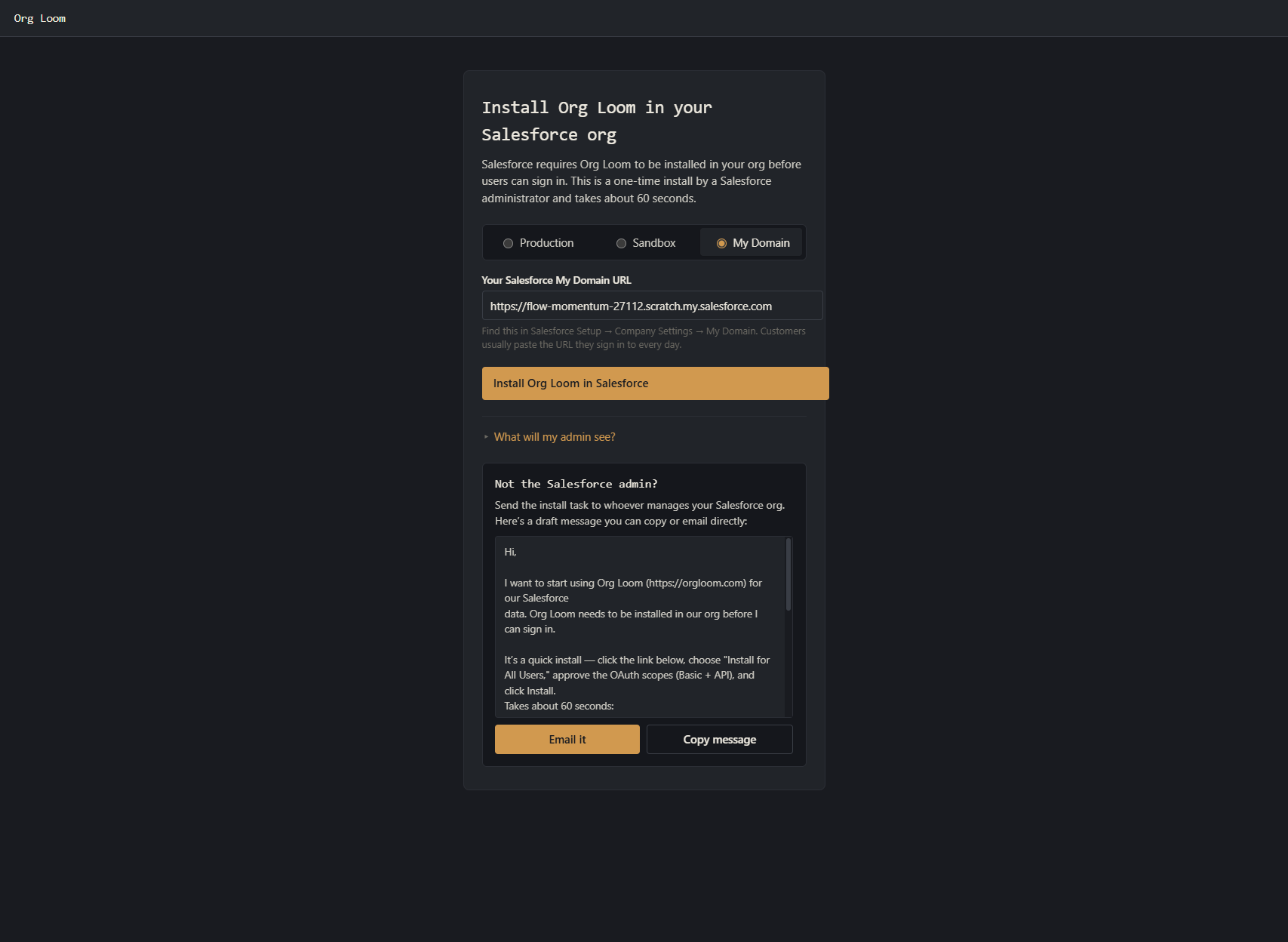
If the org does not have the managed package, Org Loom opens Install Org Loom in your Salesforce org. The managed package installs the Salesforce components Org Loom needs to store saved canvases and Activity History in your org.
If you are the Salesforce administrator:
- Confirm the target org and select Install Org Loom in Salesforce.
- On the Salesforce package page, choose Install for All Users.
- Select Install and approve any third-party access request Salesforce displays.
- Wait for Salesforce to report that the installation is complete.
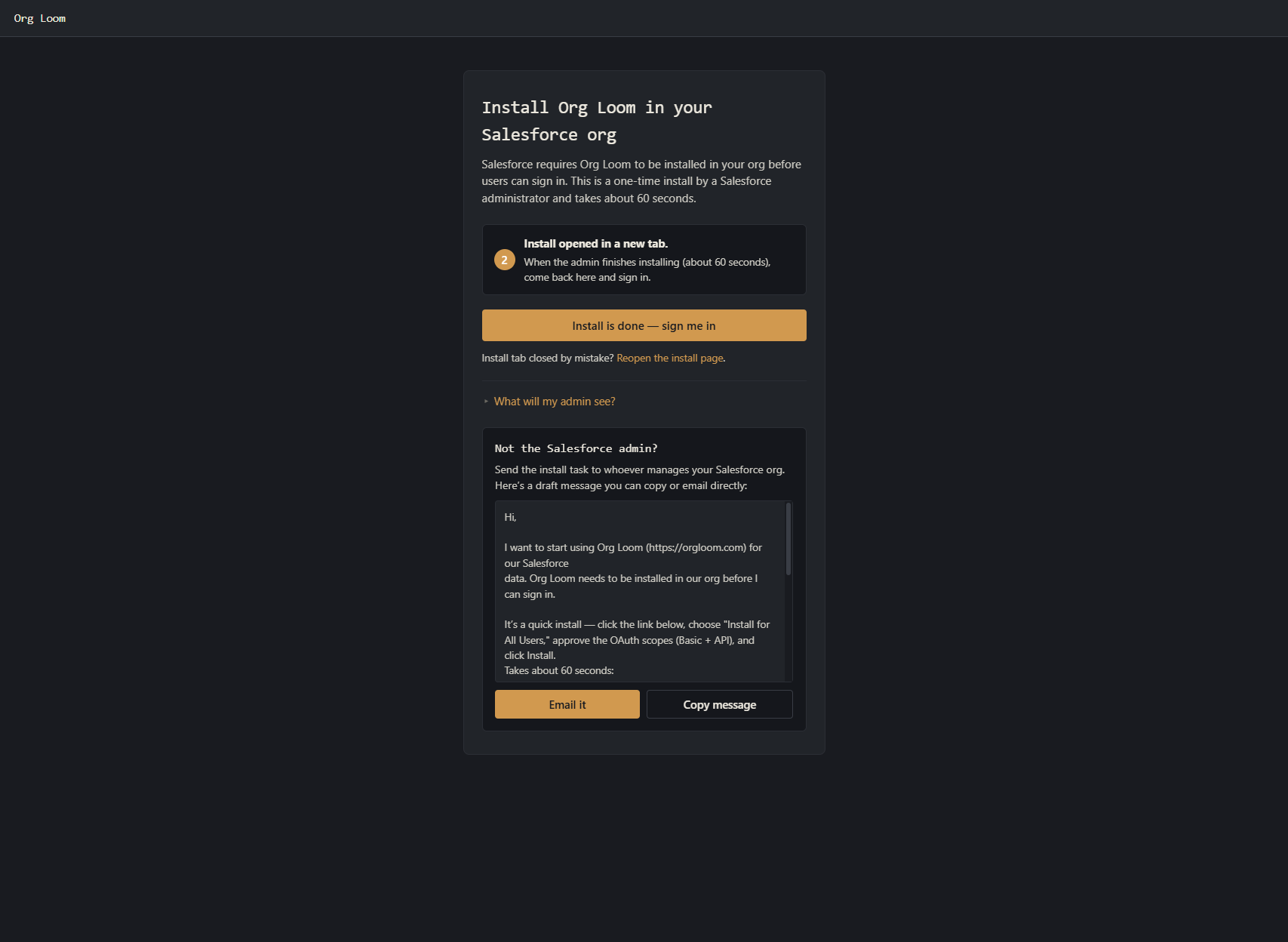
If you are not the administrator, use the I need a Salesforce admin to install it section to copy or email the prepared request. Keep the Org Loom page open while the admin completes the work.
Step 5: Configure Salesforce to allow Org Loom to connect
After installing the package, your Salesforce administrator must configure the installed Org Loom application so Org Loom's servers can connect to Salesforce on your behalf:
- Open External Client App Manager in Salesforce Setup.
- Find Org Loom and open Edit Policies.
- Set IP Relaxation to Relax IP restrictions and save.
This setting applies to the Org Loom OAuth app. It does not remove the org's network rules or the profile restrictions used for normal Salesforce sign-ins.
Back in Org Loom, the Finish Salesforce setup page lists policy configuration and permission-set assignment. Complete the permissions in Step 6 if needed, then select I completed both steps and click Verify setup and connect.
Need to enforce IP restrictions? Your administrator can keep the policy restricted and allow the IP addresses Org Loom's servers use to connect to Salesforce. Contact support@orgloom.com for those addresses and information about how changes are communicated.
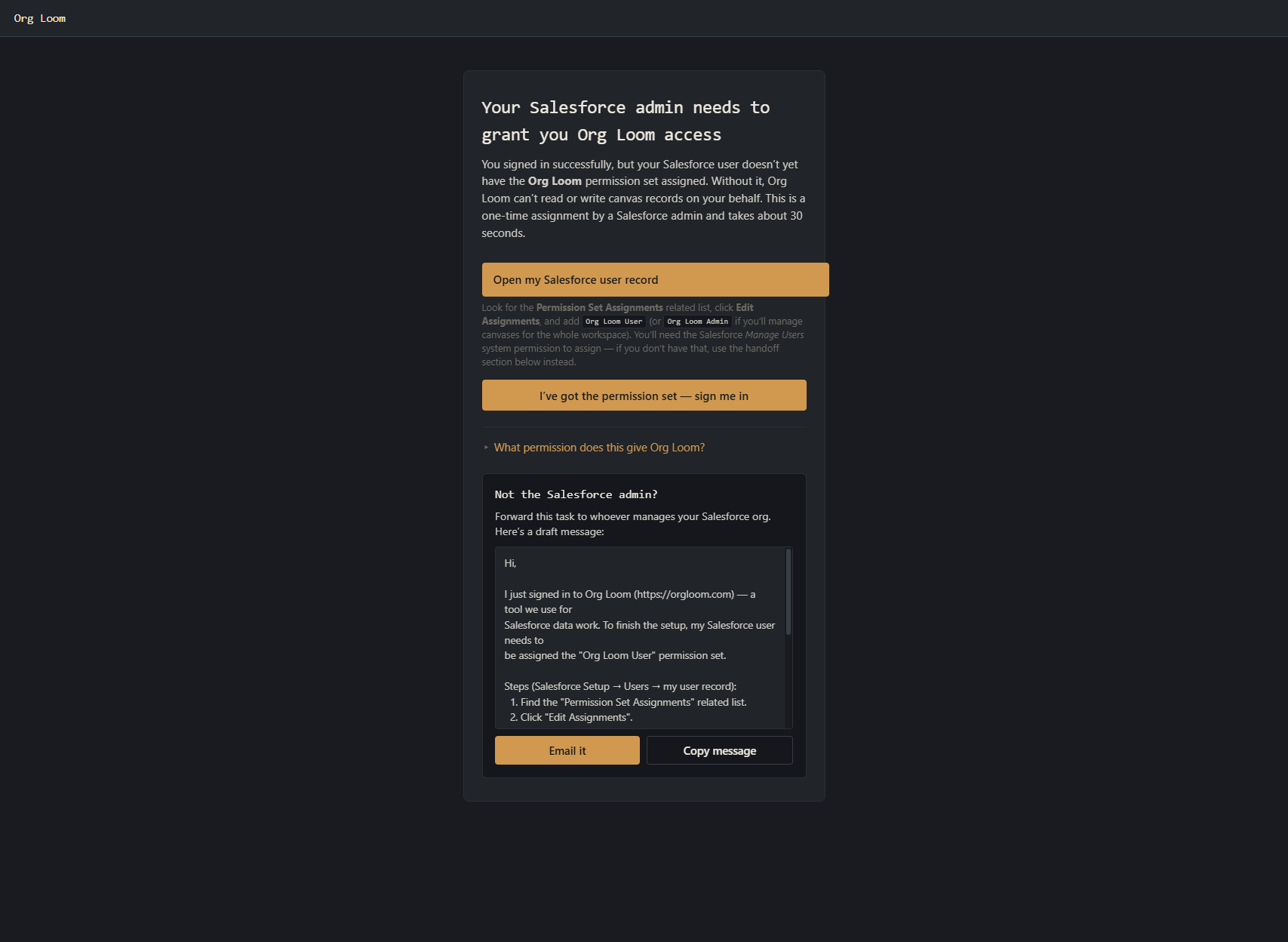
Step 6: Assign the permission set when prompted
The person who installs the managed package receives the packaged Orgloom Admin permission set automatically. Other users need a direct assignment of Orgloom User, or Orgloom Admin when they are responsible for managing other people's saved canvases.
The user also needs Salesforce's API Enabled permission, which allows applications such as Org Loom to access Salesforce on their behalf. Your administrator can enable it through the user's profile or a separate permission set; it is not included in the installed Org Loom permission sets.
Org Loom verifies the packaged assignment for every user, including a Salesforce System Administrator. Profile permissions alone do not replace this check.
Your Salesforce administrator completes the assignment:
- On Org Loom's permission setup page, select Open Salesforce user record.
- Under Permission Set Assignments, select Edit Assignments and add Orgloom User for the Salesforce user being connected. Use Orgloom Admin when that user needs the package's administrative permissions.
- Save the assignment.
- Return to Org Loom and choose Check permission and continue.
If you cannot edit your own Salesforce user, expand Need a Salesforce admin? and copy or email the prepared request to an administrator. Assign the permission set directly rather than through a permission-set group so Org Loom can verify it.
Step 7: Confirm the connection
After connecting, Org Loom returns to the canvas. The Salesforce control in the upper-right corner displays the connected username. Open Salesforce connections and look for the row marked Current to confirm the Salesforce user and org before adding or changing records.
Reconnect after a Salesforce session ends
Org Loom remembers the Salesforce user and org in the connection list so you can select them again later. You may still need to sign in to Salesforce again to use that connection.
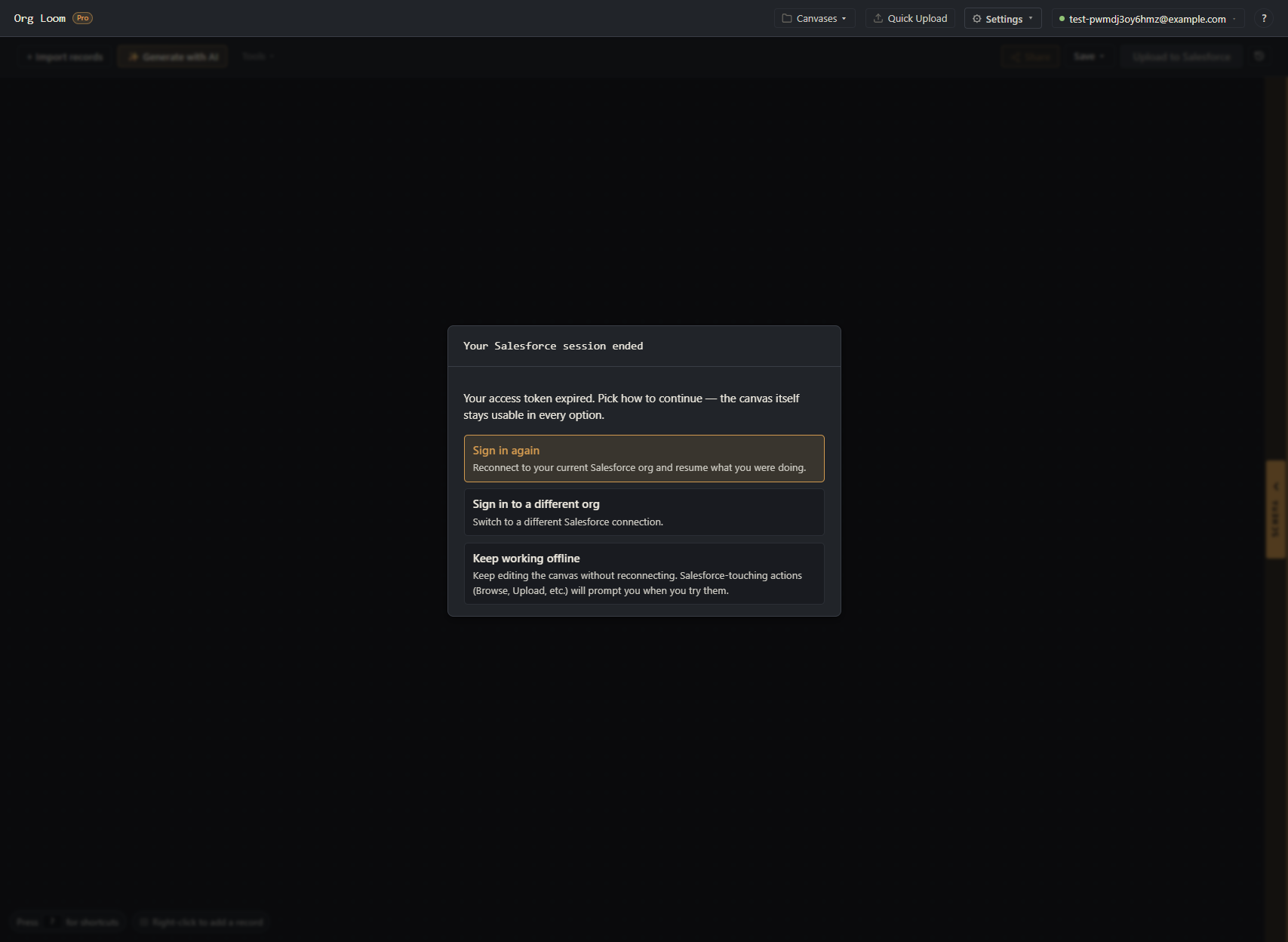
If you try to use Salesforce after your connection expires, Org Loom shows Your Salesforce session ended. Choose:
- Sign in again to reconnect to the current org.
- Sign in to a different org to open the connection list.
- Keep working offline to continue arranging and editing records already on the canvas. Reconnect before loading or refreshing Salesforce records, uploading changes, or saving the canvas to Salesforce.
You can also select the Salesforce connection control and choose Sign in beside a saved connection. This always starts a fresh Salesforce sign-in.
Manage your connections
Saved connections appear in a scrollable table. The current connection is first, highlighted in orange, with Current beside the username. Other rows are grouped by org, alternating between gray and black.
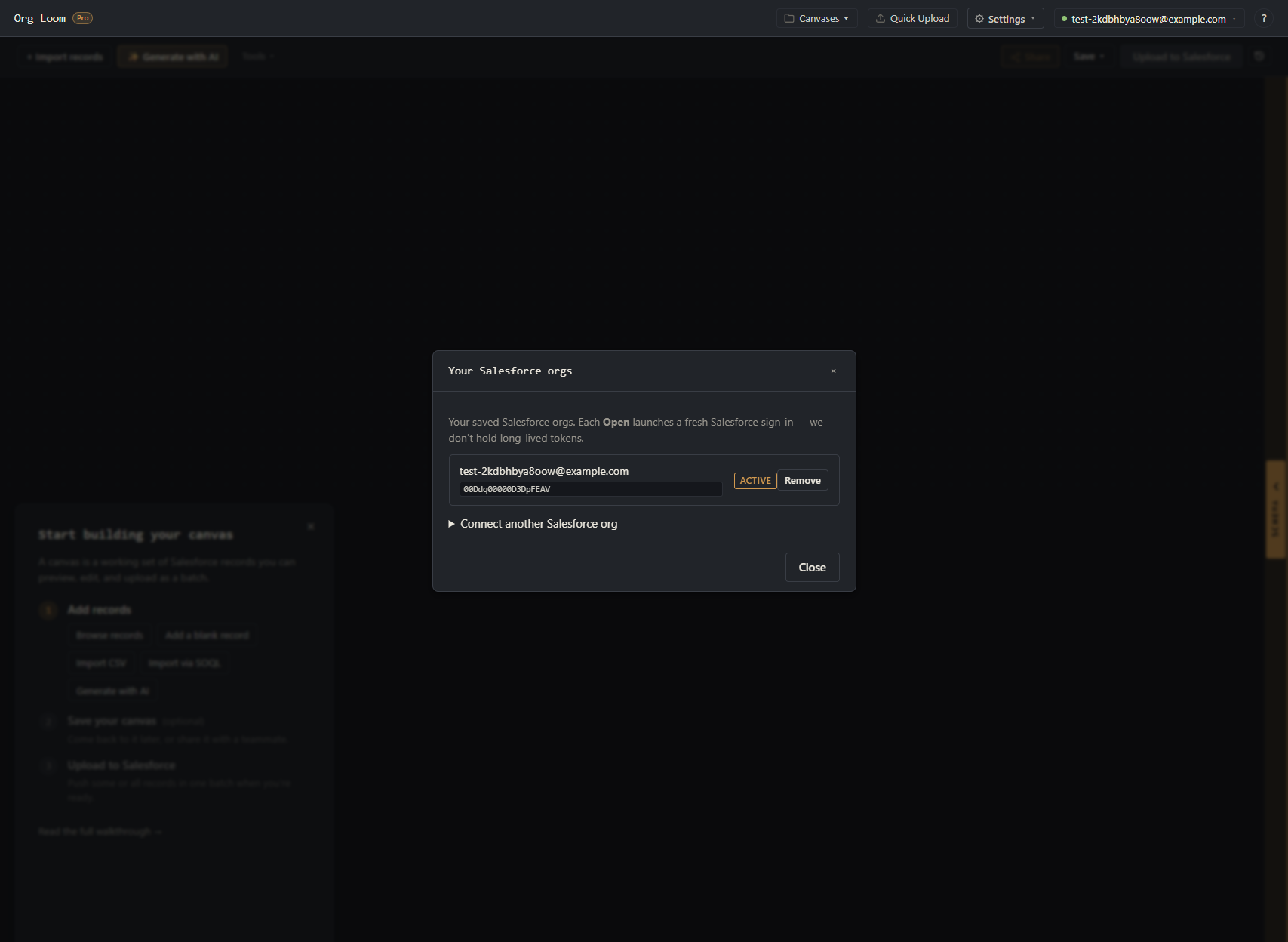
Open Salesforce connections using the Salesforce control in the upper-right corner of the canvas. The row marked Current shows the Salesforce user and org you are working with.
Add another connection: While connected, expand Add connection, and complete the sign-in steps above for the additional org. Each org needs its own package installation and policy configuration, and each connecting user needs a permission-set assignment.
Switch connections: Choose Sign in beside the Salesforce username you want to use. After sign-in, that user and org become your current connection.
Disconnect: Choose Disconnect on the current connection to end its active session while keeping it saved. Choose Sign in to reconnect.
Remove a saved connection: Click the × beside a connection and confirm to remove that user-and-org entry from Org Loom. If it is active, removing it also disconnects it. This does not delete Salesforce records, saved canvases, or Activity History in Salesforce. You can add the connection again later by signing in.
If Salesforce cannot complete the connection
If Salesforce sign-in fails, choose Retry Salesforce sign-in. If the failure repeats, ask a Salesforce administrator to confirm the Org Loom IP Relaxation policy in Step 5.
If your org requires its own sign-in address, return to
Salesforce connections, expand Add connection, choose
Custom URL, enter its Current My Domain URL
in the field showing acme.my.salesforce.com, and select Connect.