Walkthrough
Import Salesforce records with SOQL
Use a read-only SOQL query (Salesforce Object Query Language) to place a precise set of existing Salesforce records on the canvas. Preview the result first, then choose whether each card should contain every readable field or only the fields selected by your query.
Before you begin
You will need:
- An active connection to the Salesforce org you want to query.
- Permission to read the objects, records, and fields in the query.
- In a Team workspace, the Import via SOQL permission from a workspace admin.
- A single SOQL
SELECTstatement that includesId.
The query cannot change Salesforce. Org Loom accepts
only a read-only SELECT. Editing and uploading the
resulting cards is a separate action.
The process
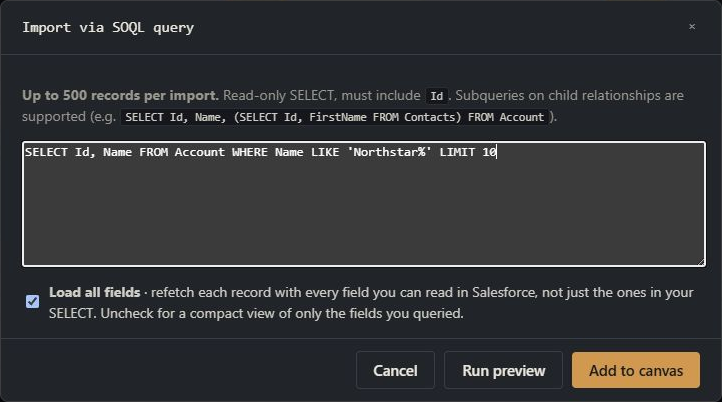
- Open + Add records → Import via SOQL query.
- Enter a query and choose how many fields to load.
- Run a preview and check the object and record counts.
- Add the results to the canvas.
Step 1: Enter the query
Open + Add records and select Import via
SOQL query. Enter one SELECT statement. The
query must include Id so each result can remain linked
to its Salesforce record.
SELECT Id, Name, Industry
FROM Account
WHERE CreatedDate = LAST_N_DAYS:30
LIMIT 50
You can also include a child query inside the main query to load related records. For example, an Account query can also select Contacts, placing both the parents and children on the canvas with their relationships represented.
Step 2: Understand which fields are loaded
Org Loom uses the query to find the records, then automatically loads every field your Salesforce user can read, including fields not listed in the query.
Step 3: Preview the results
Choose Run preview. Review the returned record
count, the objects represented, and the sample rows. If the result
is broader than intended, add a WHERE clause or a
smaller LIMIT before continuing.
An import can add up to 500 records. When a query reaches that cap, Org Loom shows the first 500 and asks you to narrow the query.
Step 4: Add the records to the canvas
Choose Add to canvas. Each result becomes an existing record card connected to its Salesforce ID. Importing a record already on the canvas does not create a second copy of the same Salesforce record.
You can now inspect or edit the cards. Salesforce changes only when you later choose Upload to Salesforce and confirm the upload.
If the query does not run
- Check object and field API names for spelling errors.
- Confirm that
Idappears in the top-level query. - Remove additional statements, comments, or non-
SELECTcommands. - Ask your Salesforce administrator about an object or field you cannot read.